
The Pareto principle (also known as the 80/20 rule) states that for many events, roughly 80% of the problems come from 20% of the causes. This statement is merely a rule of thumb and is not an immutable law of nature. More generally, a small subset of issues tend to cause most problems, and it is useful to identify those issues as they have the most impact on the process.
A Pareto chart shows the frequency of occurrences of quality-related problems to highlight those that need the most attention.
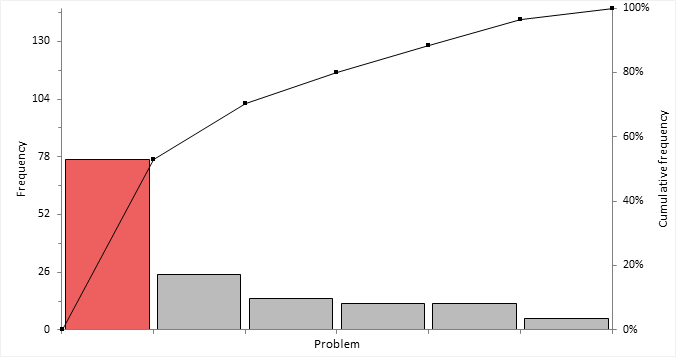
Plot a Pareto chart to identify the most frequently occurring quality-related problems.
Plot a series of Pareto charts to identify the most frequently occurring quality-related problems stratified by up to 2 factors.
Merge categories to reduce clutter and see the vital few rather than the trivial many.
Color bars to highlight the importance of the vital few.
Reorder bars to put a specific category at the end (for example, Miscellaneous).
Sort the bars into the same order to make comparisons easier.
Pareto analysis study requirements and dataset layout.
Use a column for the variable (Failute), an optional column for the factor variable (Operator); each row has the values of the variables for a failure (ID).
| ID (optional) | Operator (optional) | Failure |
|---|---|---|
| 1 | SNH | Colorimeter drift |
| 2 | SNH | Miscellaneous |
| 3 | JDH | Electrode failure |
| 4 | GMH | Deformed tubing |
| 5 | SNH | Reagents |
| 6 | SNH | Light failure |
| 7 | JDH | Deformed tubing |
| 8 | SNH | Colorimeter drift |
| 9 | JDH | Colorimeter drift |
| 10 | GMH | Deformed tubing |
| … | … | … |
Use a column for the variable (Failute), an optional column for the factor variable (Operator) and a column for the number of cases (Frequency); each row has the values of the variables and the frequency count.
| Failure | Operator (optional) | Frequency |
|---|---|---|
| Colorimeter drift | SNH | 14 |
| Colorimeter drift | JDH | 15 |
| Colorimeter drift | GMH | 22 |
| Deformed tubing | SNH | 4 |
| Deformed tubing | JDH | 5 |
| Deformed tubing | GMH | 5 |
| Electrode failure | SNH | 1 |
| Electrode failure | JDH | 2 |
| Electrode failure | GMH | 3 |
| … | … | … |