
Analyse-it 6.22 released: Install without administrator rights
Until now, installing Analyse-it needed administrator rights. On many laboratory and company computers that meant asking IT to install it for you, and asking again for every update. From version 6.22, you don’t need to.
Updated 30 September 2026: From Analyse-it 6.24, turning off updates also hides every update notice and the Check for Updates command, and works whether Analyse-it is installed for everyone or just for you. See For IT administrators below.
Installing without administrator rights
When you install Analyse-it 6.22 on a computer for the first time, it installs just for your Windows account. You don’t need administrator rights, and you can install updates yourself as soon as they’re released. Only you see Analyse-it in Excel, so if other people use the same computer, they install and activate it from their own account.
If you look after a number of computers and prefer to install Analyse-it for everyone, you still can: run the installer with ALLUSERS=1. See Deploying the software.
If Analyse-it is already installed for everyone on a computer, updating to 6.22 keeps it that way, so nobody on that computer loses access. To switch to an installation just for your account, uninstall Analyse-it first and then install it again.
Every file code-signed
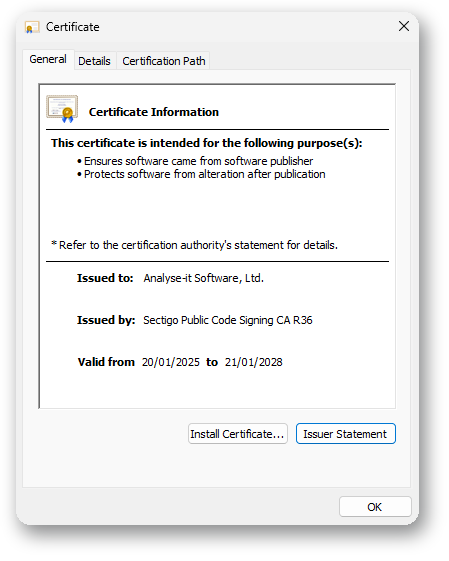 Code signing attaches a digital signature to a file. The signature shows who published the file, in this case Analyse-it Software, Ltd., and that nobody has changed it since it was signed. If a file is altered in any way, even by a single byte, the signature no longer matches and Windows can tell. Windows and antivirus software use signatures to decide whether to trust a file.
Analyse-it’s main application files have always been code-signed. From 6.22, every file it installs is signed as well. Most of you won’t notice any difference, but it covers the rare case where antivirus or other security software objects to one of the supporting files.
If Analyse-it doesn’t appear in Excel
Analyse-it still starts automatically every time you start Excel. If the Analyse-it tab ever doesn’t appear, use the new Analyse-it for Excel shortcut on the Start menu. It starts Excel with the Analyse-it tab showing.
The installer also adds the Analyse-it Troubleshooter, and runs it to check the add-in when installation finishes. If the tab still doesn’t appear, run the Troubleshooter and it will fix the most common causes. See Troubleshooting.
For IT administrators
If IT manages the computers where you work, please pass these two changes on:
- All licensing now goes through license-server.analyse-it.com. If your computers are behind a firewall, TCP port 443 needs to be open to that address. See Licensing.
- Two registry settings let administrators turn off updates and the license renewal reminders. From 6.24, turning off updates hides every update notice and the Check for Updates command too, however Analyse-it is installed. See Turning off updates.
You can see every change in the release history. As always, let us know what you think. If there’s anything that would make Analyse-it easier to install or manage where you work, we’d like to hear about it: contact us.
Get new posts by e-mail
Release news, how-tos and statistical explainers, one e-mail a post. Unsubscribe from any e-mail.