
1. User's Guide
  2. Feedback and crash reports

Feedback & Crash ReportingSuggestions, bug, and crash reports you send to our development team help shape the future of Analyse-it.

The feedback you send helps us to identify, diagnose and fix application crashes and prioritize development time toward the most requested features. When sending feedback try to include as much information as possible to help us understand the issue. We read all your feedback, but we only respond to you if we need more information about your report.

Do not use feedback for support requests. For those, contact us directly support@analyse-it.com

Note: Feedback and crash reporting use your internet connection. If your computer is behind a firewall, ensure the TCP port 443 (HTTPS) on the firewall is open for communication to license-server.analyse-it.com.

Sending feedback

Submit your ideas for improvements, feature requests, and bug reports.
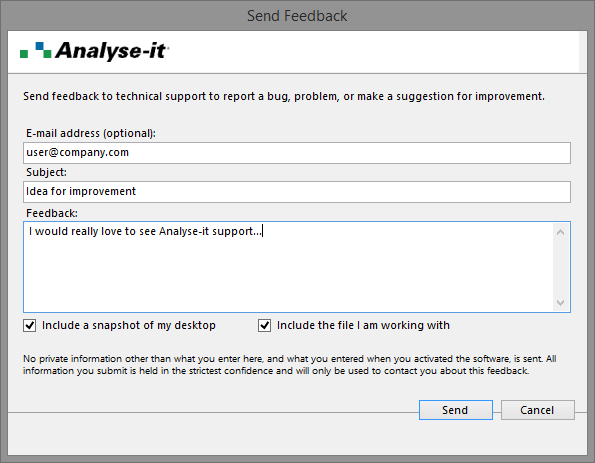
  1. On the Analyse-it ribbon tab, click Analyse-it, and then click Send Feedback.
    The Send Feedback window opens.
    send feedback

  2. Enter an E-mail address where we can contact you.

    We respect your privacy at all times. We do not collect personal information, and we only use your e-mail address if we need to contact you about your problem or suggestion.

  3. Enter a Subject and Feedback to describe your comment, suggestion, or bug report. Include as much information as possible in the feedback, including the steps to reproduce the problem if applicable.
  4. Select Include a snapshot of my desktop if it helps to show the problem or suggestion you are making.
  5. Select Include the file I am working with to include the active Excel workbook if it contains data that helps to show the problem or suggestion you are making.

    We treat any data received as private and confidential. It is used only for the purpose you submit it, and we delete it when no longer needed.

  6. Click Send.

    Your feedback is sent using your internet connection.

Submitting crash reports

Submit a crash report whenever you experience a problem so that we can try to solve it.
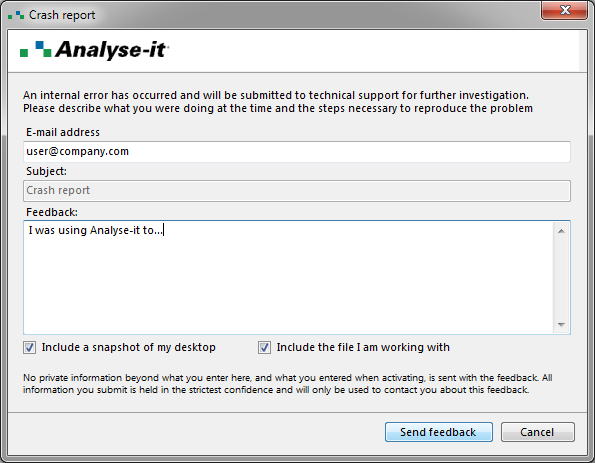
If Analyse-it crashes or experiences a problem, it creates a crash report and prompts you to send it to us for investigation. Crash reports include technical information (application state, hardware configuration, and stack traces) to help us diagnose and fix the problem. Before Analyse-it submits the crash report it checks if a fix is available. If so, Analyse-it gives you details on how to fix the problem. If no fix is available, you should submit the crash report to help us improve the application. Even if you experience a crash that seems similar to previous crashes you should still submit it as each report often provides new insight or perspective on a crash.
  1. If Analyse-it detects a serious problem, the Crash Report window opens.

    send crash report

  2. Enter an E-mail address where we can contact you.

    We respect your privacy at all times. We do not collect any personal information, and we only use your e-mail address if we need to contact you about the crash report.

  3. Enter Feedback to describe what you were doing when the crash occurred and, if possible, the steps to reproduce the problem.
  4. Select Include a snapshot of my desktop if it helps to show the problem.
  5. Select Include the file I am working with to include the active Excel workbook if it contains data that helps to show the problem.

    We treat any data received as private and confidential. It is used only for the purpose you submit it, and we delete it when no longer needed.

  6. Click Send.

    Your crash report is sent using your internet connection.

After submitting the crash report, Analyse-it attempts to recover so you can save your work and continue using the software. If the crash was serious and causes repeated subsequent crashes, you should restart Microsoft Excel and Analyse-it.